PortalEdit Page Insight A Version
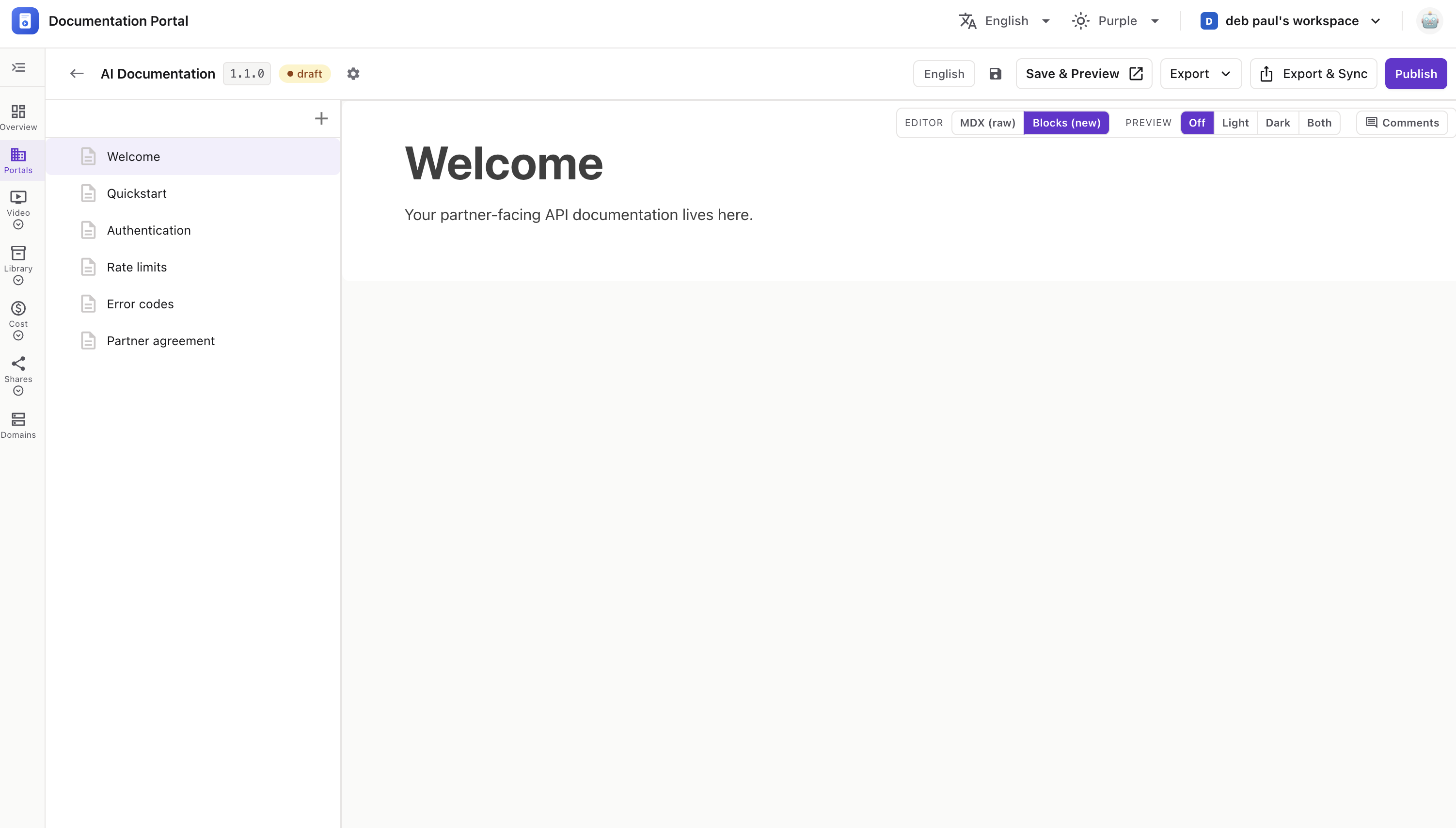
The version editor is where you write and organize the pages inside a portal version. This is your main workspace — a page list on the left, the editor in the middle, and a toolbar on top for saving, previewing, exporting, and publishing.
The editor opens on the first page (usually ).
The bar across the top has the portal name, the version pill (e.g. 1.1.0), and a status pill (draft / published).
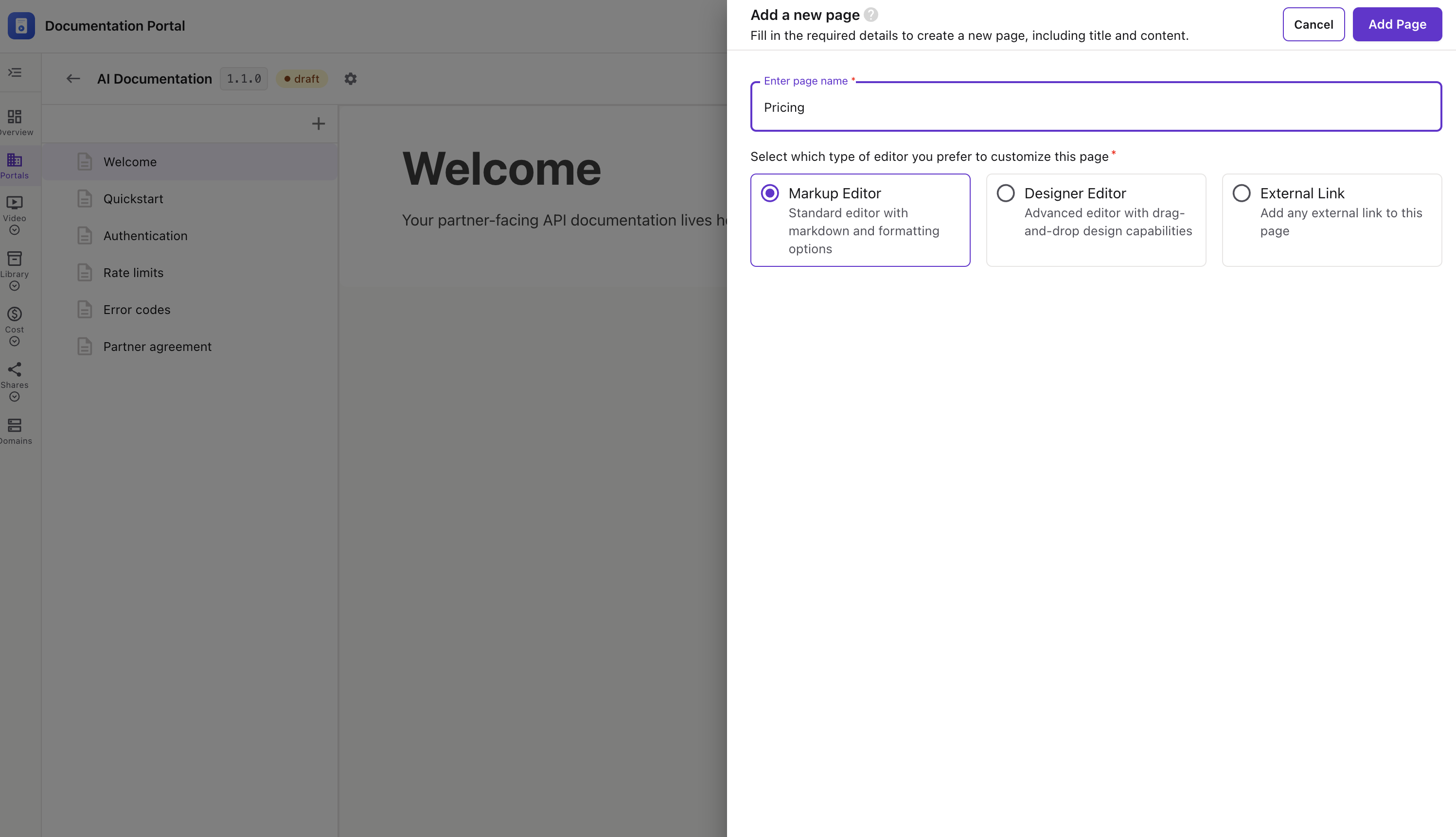
The left panel lists every page in the version. Click ➕ at the top to add a new page.
Right-click any page for its menu:
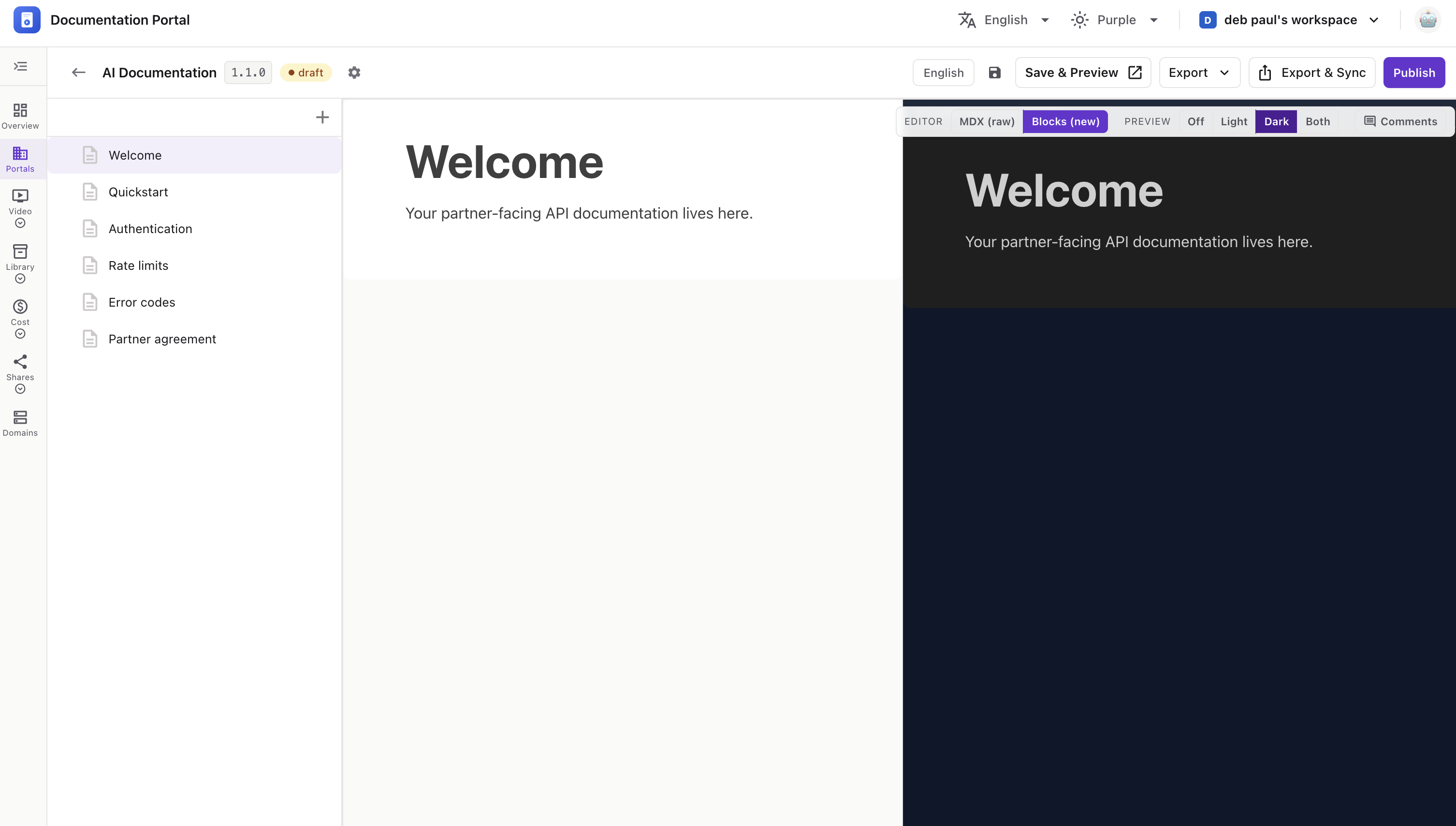
Use the Editor switch at the top-right of the content area to pick how you write:
In Blocks mode you also get a Preview switch to see the reader view side-by-side:
Click Comments to open the review panel on the right. Start a thread on the page, and replies poll in automatically every few seconds — handy for reviews before publishing.
Click Publish to open Manage and Publish your Product Version.
1.1.1).Click Publish to go live, or Cancel to go back.
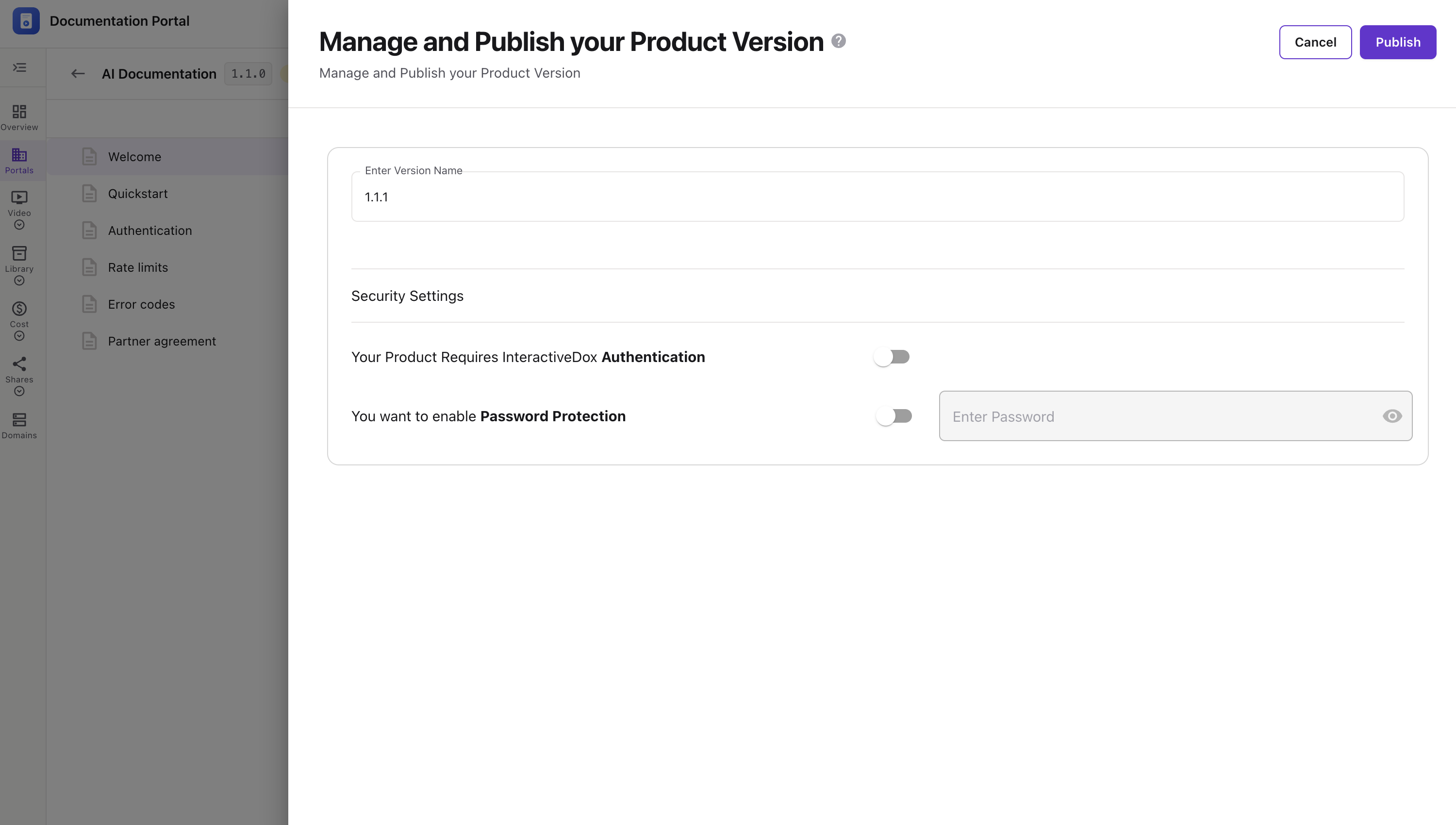
💡 If the portal already has published versions, Publish also lets you deprecate, make inactive, keep as published, or override an existing version.
Tip: Changes save per page — use 💾 Save often, and Save & Preview to check the live reader view before you publish.