PortalExport and Sync Page
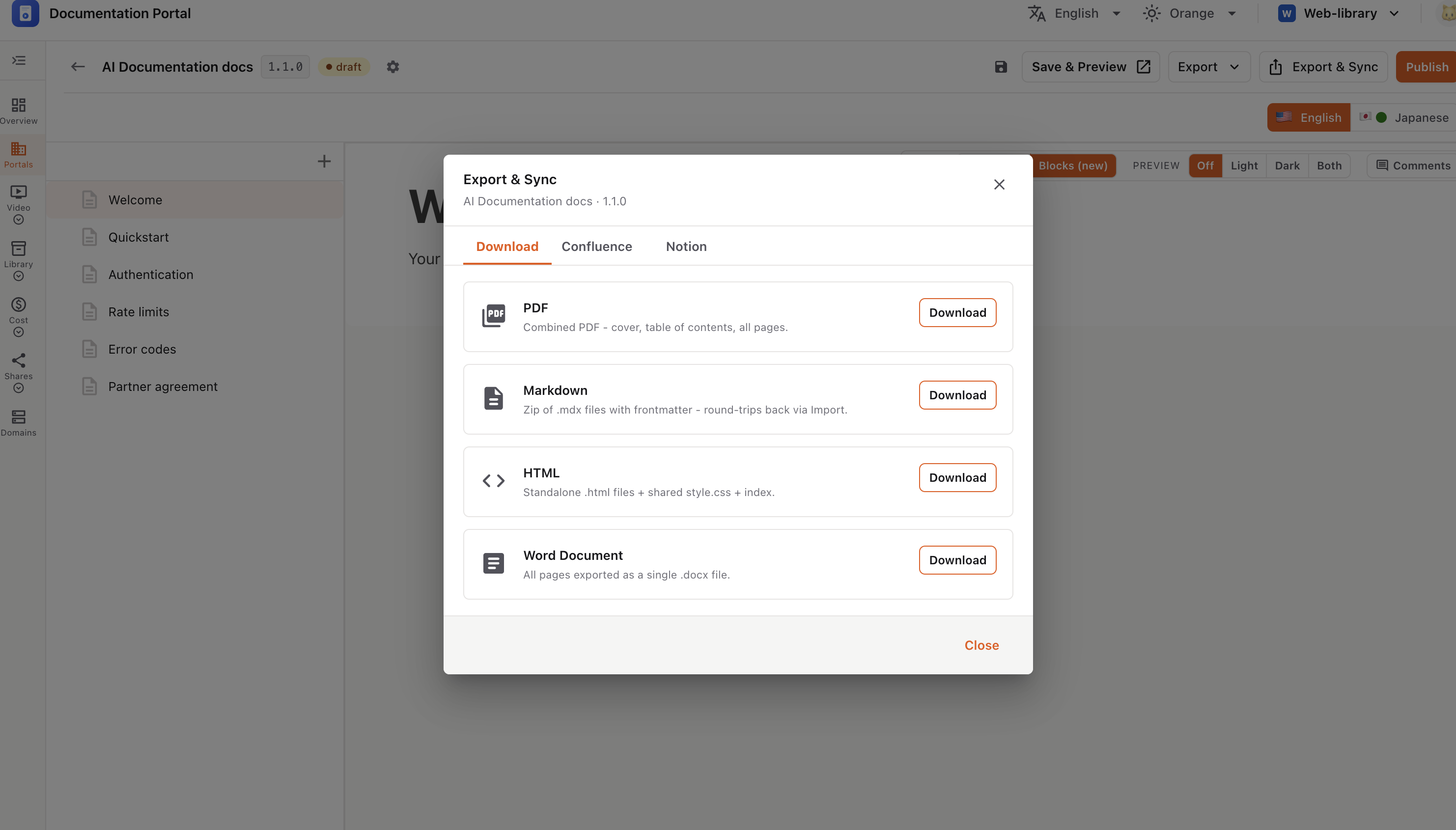
Inside the editor, Export & Sync lets you export the version’s pages as a file, or sync them to Confluence or Notion — all from one window with three tabs.
In the editor toolbar (top-right), click Export & Sync.
The window opens on the Download tab.
💡 To download just the page you’re on, use the Export ▾ button instead (PDF / Markdown / HTML / Word).
Pick a format and click Download. A progress bar runs, then a Download link appears.
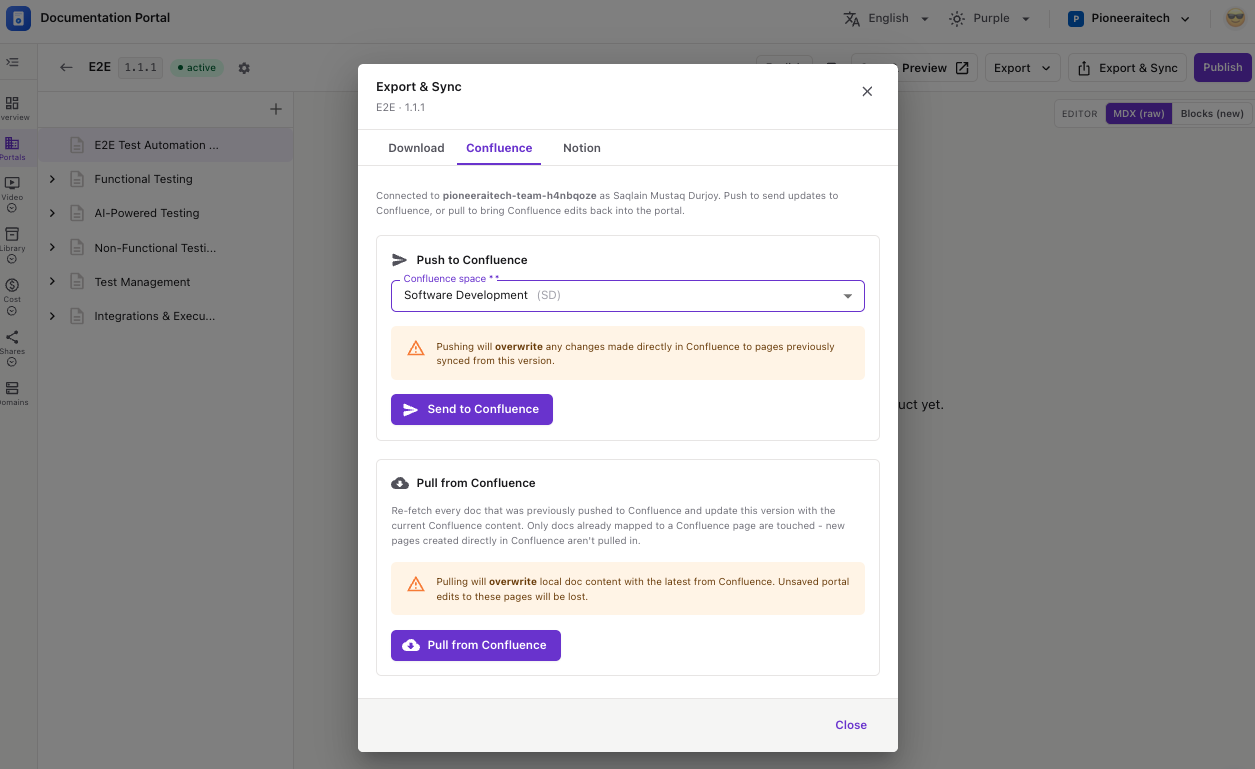
Sync with a Confluence space. If it’s not connected, click Connect Confluence and authorize once.
⚠️ Both overwrite — push replaces synced Confluence pages; pull replaces local content.
Sync to Notion. If it’s not connected, click Connect Notion and authorize once.
💡 A page only shows in the picker if it’s shared with the InteractiveDox integration in Notion.
Click Close when you’re done.