PortalPortal Settings
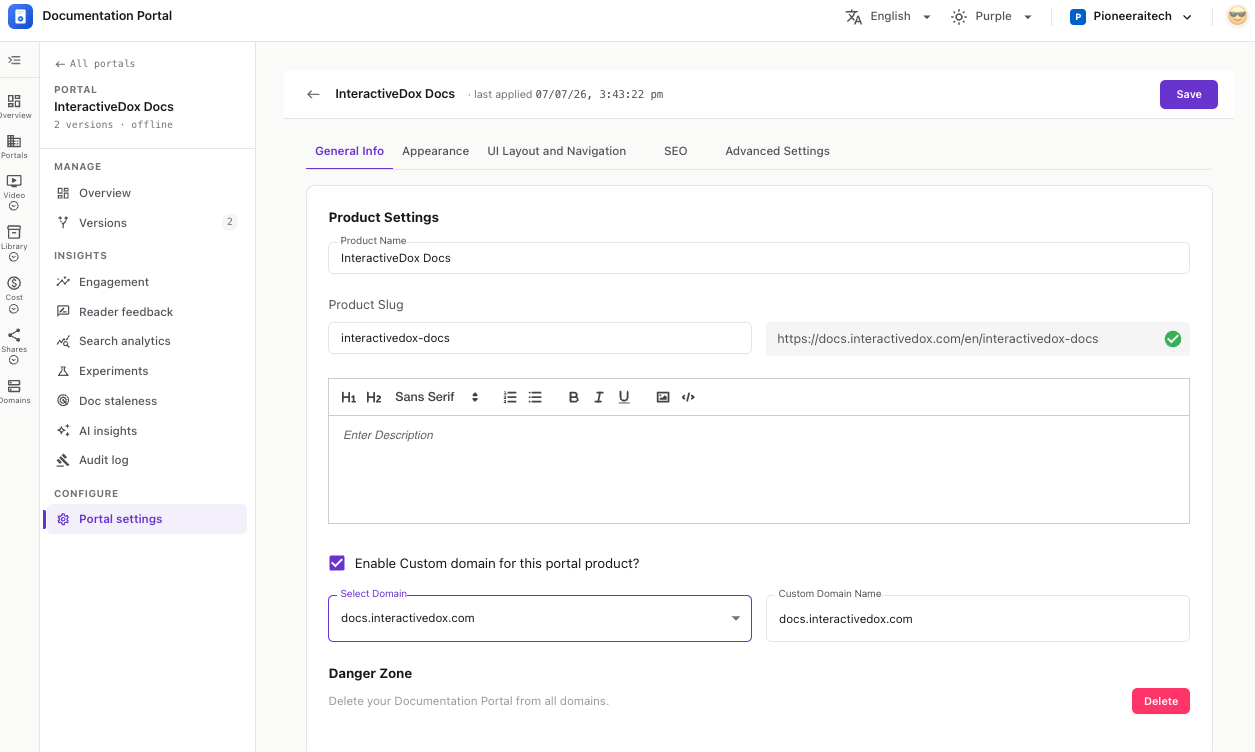
Portal settings is where you configure everything about a documentation portal after it’s been created — its name and web address, its branding, its navigation, its SEO, and its analytics. Every setting lives behind one page with five tabs, and a single Save button applies all of your changes at once.
At the very top of the page you’ll always see:
💡 Your edits across all five tabs are held together and only written when you click Save. You can move between tabs freely without losing changes, but nothing is persisted until you save.
This tab controls the portal’s identity — what it’s called, where it lives, and how to remove it.
The display name of your portal. It appears in the portal header and throughout the dashboard.
The slug is the portal’s address segment. As you type, a live preview on the right shows the full public URL — for example https://docs.interactivedox.com/en/test123123lock.
A rich-text editor for a short description of the portal. The toolbar supports:
Tick “Enable Custom domain for this portal product?” to serve this portal from your own domain instead of the default docs.interactivedox.com address.
docs.yourcompany.com).ℹ️ Only domains that have been verified (and aren’t already claimed by another portal) appear in the dropdown. Set domains up first under Custom Domains in the sidebar.
At the bottom sits the Danger Zone:
Delete your Documentation Portal from all domains. — the red Delete button removes the portal entirely. A confirmation dialog appears first; this action cannot be undone.
This tab sets the portal’s visual identity. It’s split into two cards.
Two color controls — Primary Color and Secondary Color — drive buttons, links, and highlights.
#673ab7, Orange #ff9800, Brown #795548.#1260ce).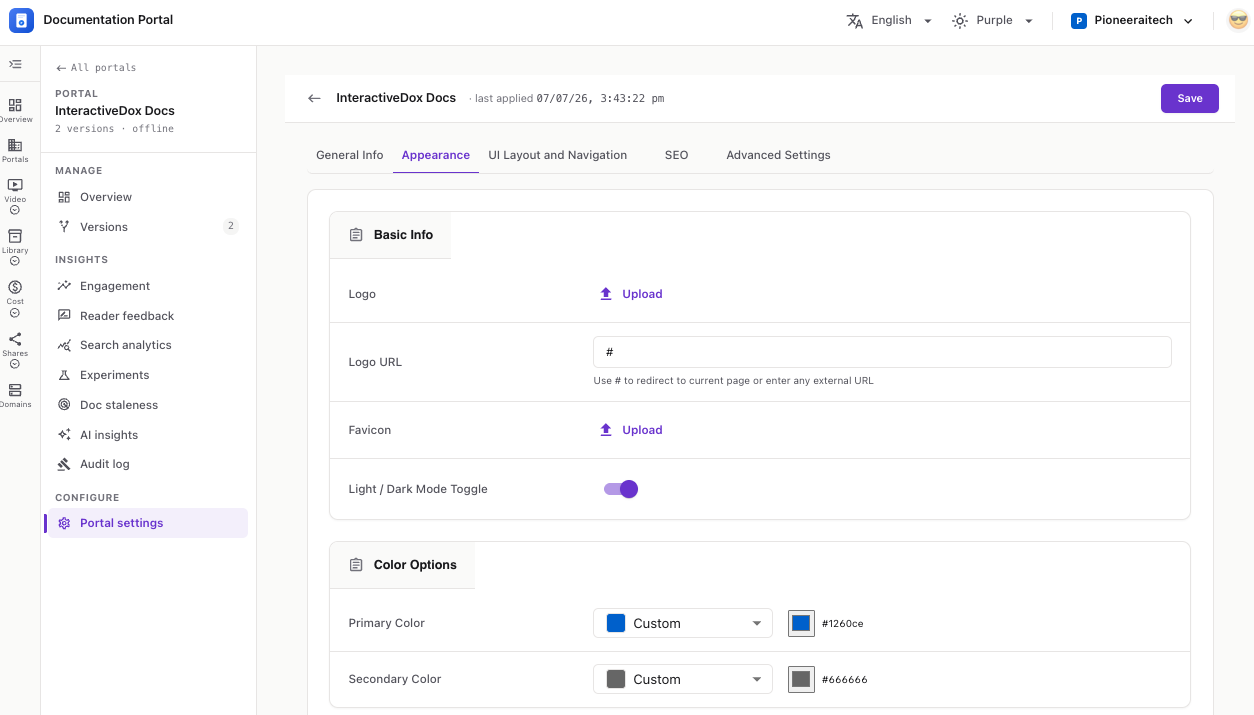
Titled Footer, Navbar & Social Settings, this tab controls the chrome around your docs — the top navigation, the footer, and your social links.
Links shown in the portal’s top navigation bar. Click ➕ Add Item to open a side panel with three fields:
Existing items appear in a list with edit and delete actions. Until you add any, the section reads “No navbar items added yet.”
© 2025 Your Company. All rights reserved.).Optional links to your online presence. Each must be a full https:// URL:
⚠️ Invalid URLs are rejected on save — each link must begin with https://.
Everything search engines and social platforms use when they index or share your portal. Two cards.
Each image can be uploaded, changed, or deleted.
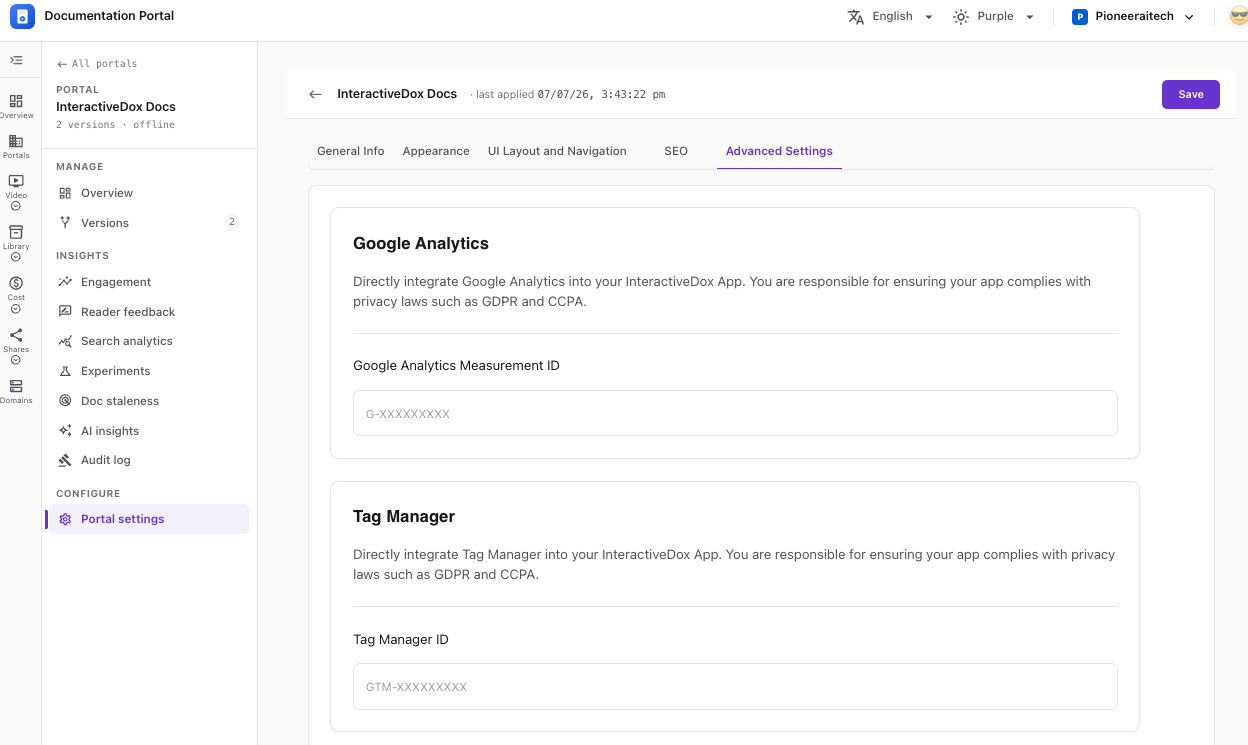
Connect third-party analytics. Two cards, each with a single ID field.
G-XXXXXXXXX.GTM-XXXXXXXXX.⚠️ You are responsible for ensuring your portal complies with privacy laws such as GDPR and CCPA when you enable these integrations.
Tip: None of these settings are permanent. Come back to Portal settings any time to rename the portal, re-brand it, adjust navigation, or connect a domain.
With your portal configured, you’ll typically move on to:
v1, v2. → Versions guide