SettingsAppearance
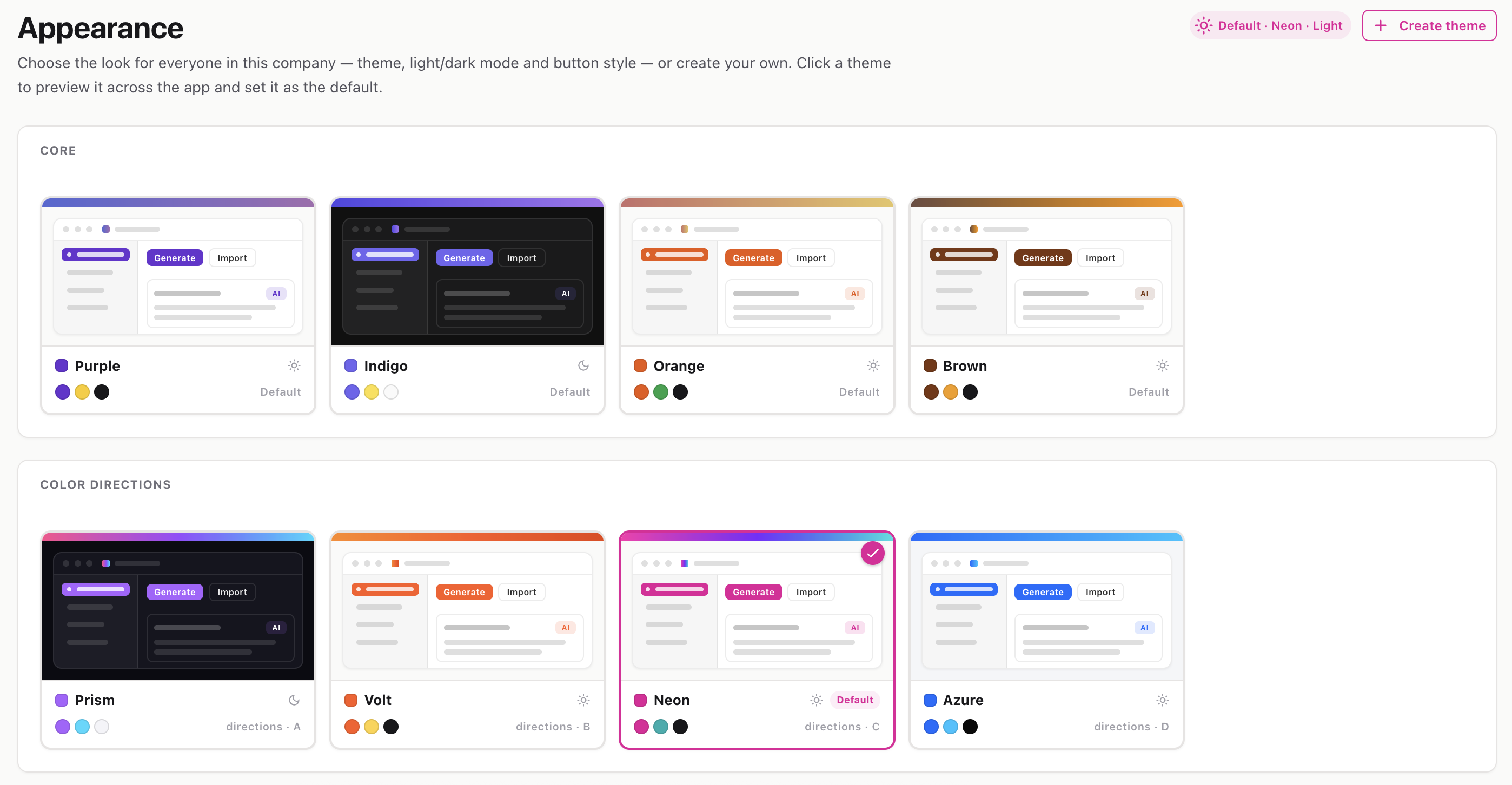
Choose how InteractiveDox looks for your whole organization — pick a theme, light or dark mode, and button style, or build your own custom theme.
Route: /settings/appearance
The Appearance page controls your workspace’s visual branding. Browse a gallery of pre-built themes (grouped into Core, Color directions, Monochrome, Warm, and Presets), preview any of them live, and set one as your organization’s default. You can also create custom themes from your own brand colors.
A chip in the top-right always shows your current default theme and mode.
ℹ️ Closing the drawer without setting a default reverts the live preview back to your saved theme.
#6633D1)Your custom themes appear in the gallery with Edit (pencil) and Delete (trash) icons on hover.
⚠️ Colors must be valid hex values, or you’ll get a validation message. If you delete the theme that’s currently the default, the app falls back to the “Purple” theme.
Serve your documentation portal on your own web address — like docs.yourcompany.com — instead of the default InteractiveDox URL. This guide covers the full flow: adding a domain, verifying it, and attaching it to a portal.
Config page: /documentation-portal/settings (menu: Custom Domains)
Used in: a portal’s Product Settings → General Info tab
A custom domain is a personalized web address that puts your portal under your own brand. Setting one up is a two-part process:
Once both are done, visitors reach that portal over HTTPS at your custom address.
ℹ️ Managing domains (add/verify/edit/delete) requires domain-management permission on the workspace.
docs.example.com). It’s validated for a proper domain format.Open the domain to see the DNS records you must add at your DNS provider (GoDaddy, Cloudflare, Route 53, etc.). Each record has a copy button.
Copy each value into a matching record at your DNS provider, then save. DNS changes can take a few minutes (sometimes longer) to propagate.
InteractiveDox checks your DNS automatically on a schedule. To check right away, click Verify now in the domain drawer (there’s a short cooldown between manual checks).
A status timeline shows progress:
💡 If a check fails, the drawer shows the reason (e.g., a record not found yet). Fix or wait for DNS to propagate, then Verify now again.
ℹ️ An Active domain’s name is locked (read-only) so a live address can’t be changed by accident.
A verified domain only goes live once you connect it to a portal:
ℹ️ One domain, one portal. Each portal uses a single custom domain, and each domain can be attached to one portal at a time. To move a domain, switch the selection on the new portal (it’s released from the old one on save).